
# Vue Smile Training
# Create a new project
Create a Library Project and add component which already has api to integrate with Vuejs
- Create a Library project
$ smile new Library
$ cd library
/library $ sbt
[Library] $ smile
- Add component
[Library] $ add-component libra-api_release-0.1
[info] downloading libra-api_release-0.1-smile-3.4.0.zip from https://bitbucket.org/sanjibkg/smile-repo/downloads ...
######################################################################## 100.0%
[info] libra-api_release-0.1 is installed in local repository
[info] libra-api_release-0.1 is added to the project
[info] refresh eclipse project
[info] add the import  'import-component libra-api_release-0.1(LibraApi,LibraData,LibraDomain,LibraMongo)' to /Users/sagarmahapatra/i3/library/k/Library.ksmile and smile.
- Import the project and also the component to Eclipse and add the import-component to
library.ksmile
import-component libra-api_release-0.1(LibraApi)
- smile
$ smile
- Import the downloaded Libra component to eclipse.
# Add a vue module
- Add the following to
.ksmilefile and understanding the bundle
section library {
	vue-module/0.2 LibraryApp at com.metastay.libraryapp
}
- Go to project/
plugins.sbtand uncomment the below lines.
//addSbtPlugin("org.scala-js" % "sbt-scalajs" % "0.6.18")
//addSbtPlugin("com.vmunier" % "sbt-play-scalajs" % "0.2.8")
- Go to
SbtSettings.scalaand uncomment the below lines
import org.scalajs.sbtplugin.ScalaJSPlugin.AutoImport._
import playscalajs.PlayScalaJS.autoImport._
Seq (
  scalacOptions ++= Seq("-Xlint", "-deprecation", "-feature"),
  libraryDependencies += "org.scala-js" %%%! "scalajs-dom" % "0.9.2"
)
- Run the command smile and refresh Eclipse to see LibraryApp.kvue
$ smile
- Open
LibraryApp.kvue, update the route
route "library"
- Compile
$ compile
- Run
$ run
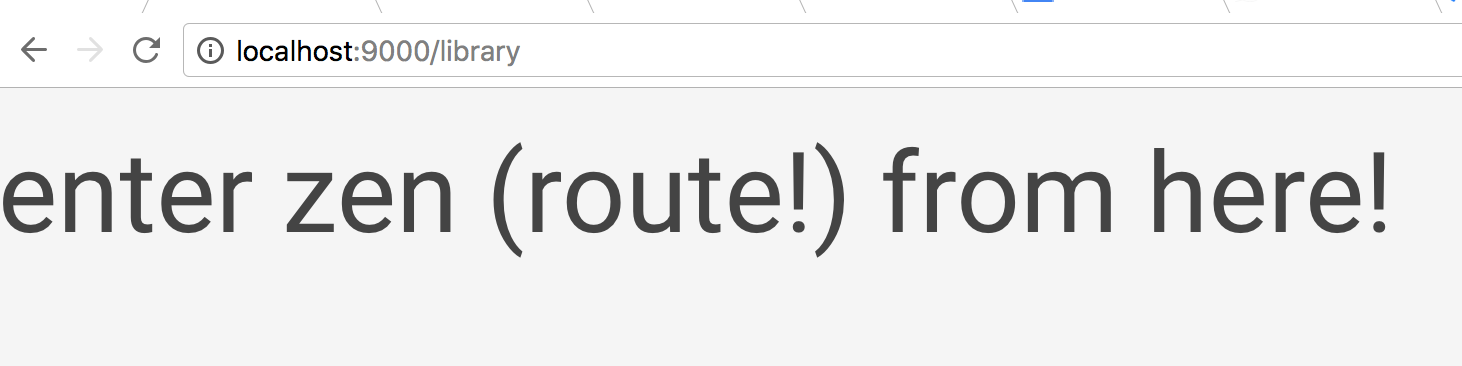
Open browser http://localhost:9000/library
# Setting up the router
- In IntelliJ open
libraryapp-main.htmland uncomment the following to activate router.
<router-view></router-view>

var router = new VueRouter({
  routes: routes
})

router : router
- modules/library/LibraryApp/resrc/
libraryapp-main.htmlshould look like below.
<template id="app-template">
  <div>
   <h1> enter zen (route!) from here! </h1>
    <router-view> </router-view>
  </div>
</template>

<script>

/* store definition
var store = new Vuex.Store({
 state:   com.metastay.libraryapp.store.StateInit.init(),
 mutations:  new com.metastay.libraryapp.store.Mutations()
})
*/

var router = new VueRouter({
  routes: routes
})

Vue.use(VeeValidate)

var App = new Vue({
   el: '#app',
   template: '#app-template',
//    store : store,
   router : router
})

</script>
- Update the modules/library/LibraryApp/resrc/
libraryapp-router.jsassuming home component is present which we are going to create next.
var routes = [
  { path : '/', redirect: '/home'},
  { path : '/home',  name: 'home' ,   component: LibraryApp.Components.Home}
]
# Create Components
- Open
LibraryApp.kvuein Eclipse and add a Home Component
html-fragment Home
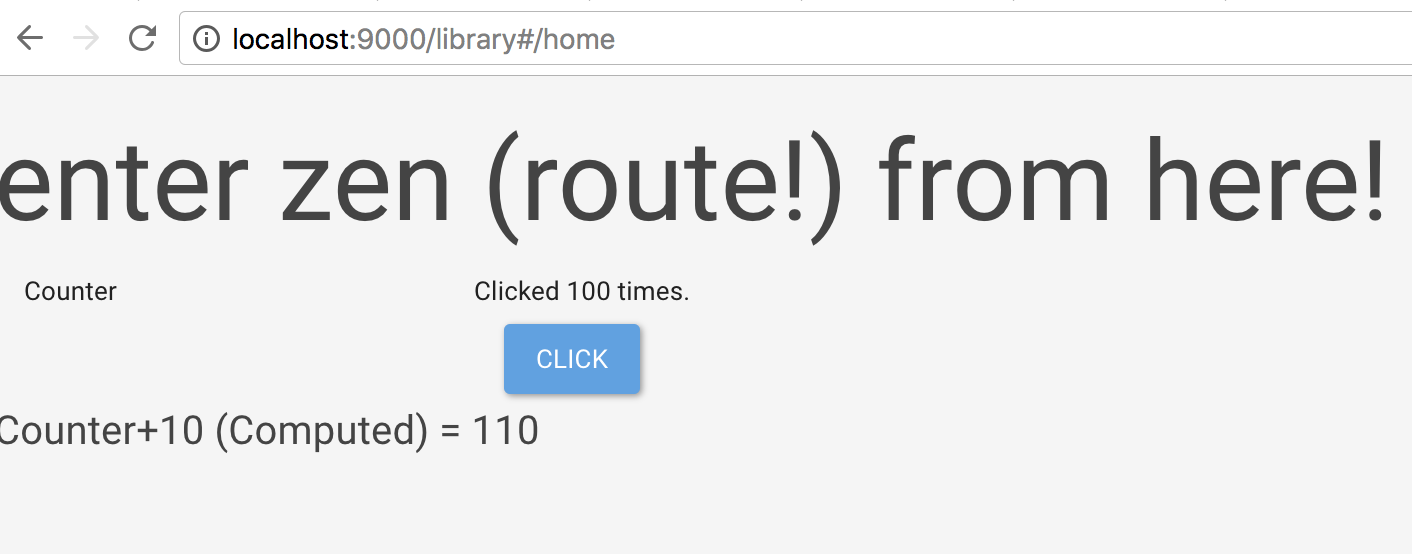
Compile and run and http://localhost:9000/library. Should be able to see Counter
In Intellij go to modules/library/LibraryApp/resrc/fragment/
home.htmlAddingthe home component to the routes, which we have already done, otherwise that needs to be done when we create new component.
var routes = [
  { path : '/', redirect: '/home'},
  { path : '/home',  name: 'home' ,   component: LibraryApp.Components.Home}
]
# Update the title
- Open
libraryapp-shell.htmland update the title
<title>Library App</title>
Run and see the bowser tile as Library App

# Adding Navbar
- Update the
libraryapp-mail.htmlonly the html part to add a navbar.
<template id="app-template">
  <div>
      <!-- navbar -->
      <nav class="navbar navbar-default navbar-fixed-top">
          <div class="container">
              <div class="navbar-header">
                  <button type="button" class="navbar-toggle collapsed" data-toggle="collapse" data-target="#navbar" aria-expanded="false" aria-controls="navbar">
                      <span class="sr-only">Toggle navigation</span>
                      <span class="icon-bar"></span>
                      <span class="icon-bar"></span>
                      <span class="icon-bar"></span>
                  </button>
                  <a class="navbar-brand" href="#">Library</a>
              </div>
              <div id="navbar" class="navbar-collapse collapse">
                  <ul class="nav navbar-nav">
                      <li class="active"><router-link :to="{ name : 'home'}">Home</router-link></li>
                  </ul>
              </div><!--/.nav-collapse -->
          </div>
      </nav>
      <!-- navbar -->


      <div class="container" style="margin-top: 80px">
          <router-view> </router-view>
      </div>

  </div>
</template>
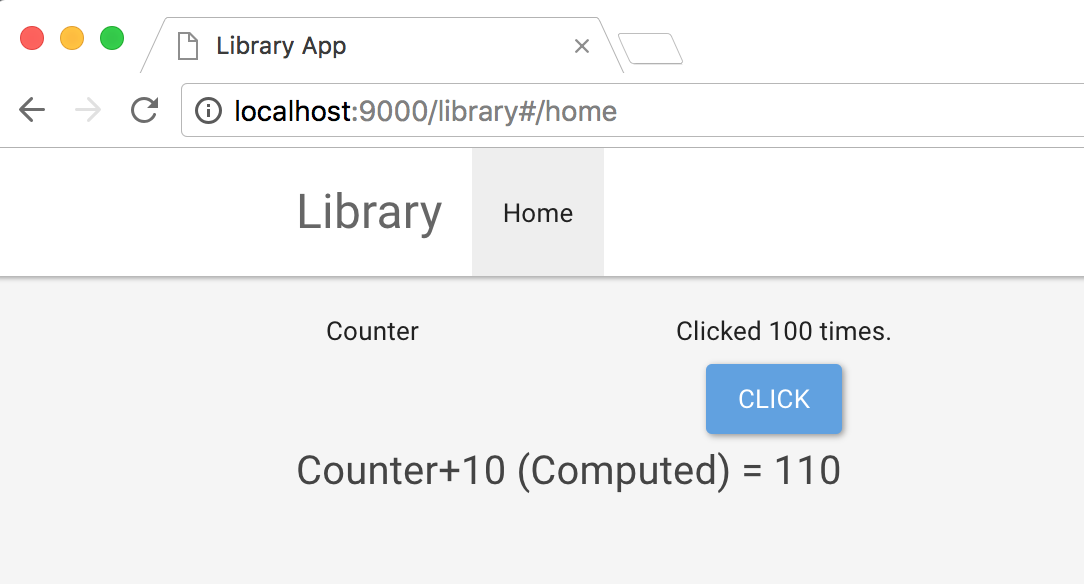
run and view in browser
# Add and Link a new Component
Will add a recentBooks page and link from home page.
- In Eclipse open LibraryApp.kvue and add the below line
html-fragment RecentBooks
Compile and find recent_books.html got created in modules/library/LibraryApp/resrc/fragment
In Intellij open
libraryapp-route.jsand add recent-books route
{ path : '/recentBooks', name: 'books.recent', component: LibraryApp.Components.RecentBooks},
- Update
home.htmlto add the link to recent books.
<template id="home">
  <div>
      <div class="jumbotron" style="background-color: #e4e4e4;">
          <h1>Library</h1>
          <p>A place where knowledge is shared.</p>
          <p>
              <router-link class="btn btn-md btn-primary" :to="{ name : 'books.recent'}" role="button">View Recent Books »</router-link>
          </p>
      </div>
 </div>
</template>
<script>
LibraryApp.Components.Home = Vue.extend({
   template: "#home",

   data: function() {
       return {

       }
   },

   computed: {

   },

   mounted : function() {
   },
   destroyed : function() {
          console.log("destroyed callback");
   },

   methods: {


   }

});
</script>
Run and view in browser
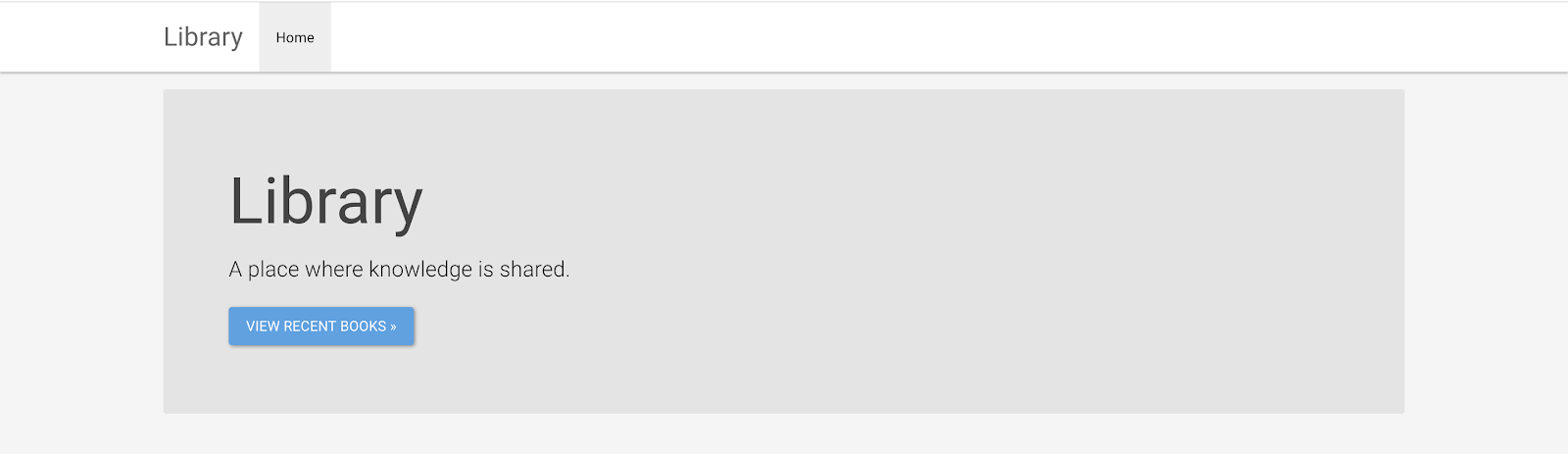
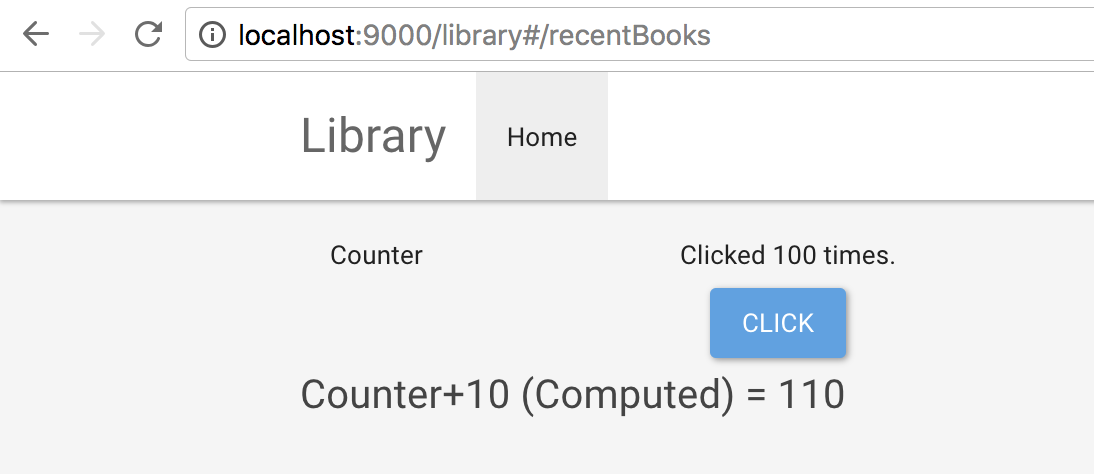
Clicking on Recent Books shows the below page
# Calling an api
Will call the backend api getRecentBooks which return only last 100 books which has been added recently.
Make the Backend api available to be called from VUE module
a. Add LibraApi as a dependency on LibraryApp, as we will need to access the api. Update
Library.ksmilevue-module/0.2 LibraryApp(LibraApi) at com.metastay.libraryappb. smile
c. Add backend-reader in LibraryApp.kvue, so that we can access the api.
backend-reader Book LibraApi::BookCall the backend api
a. Open
LibraryApp.kvueand add an action to getRecentBooks, where we will wrtite the code to call the backend-reader.actions Book { getRecentBooks }b. Compile
c. Open modules/library/LibraryApp/src/com/metastay/libraryapp/actions/
BookActionsCodeand update file as below.object BookActionsCode { def getRecentBooks: () => Unit = { () => BookReaderBackend.getRecentBooks().onSuccess { case (xhr, Right(outputList)) => case (xhr, Left(error)) => handleErrorMessage(error) } } private def handleErrorMessage(error: ErrorResponse) = { error match { case ClientErrors(list) => Toastr.error(list.map(_.message).mkString("\n")) case ClientExceptions(list) => Toastr.error("Error : " + list.map(_.message).mkString("\n")) case Forbidden(reason) => Toastr.error("You are not Authorized") case Unauthorized(reason) => Toastr.error("You are not Authorized") case ServerError(reason) => case ServerTimeout(reason) => Toastr.error("Server is not responding; Try again later") case OtherResponse(reason, statusCode) => case _ => } } }e. We uncommented the handleErrorMessage , and implemented the getRecentBooks which returns a list of recentBooks. f. Call the action getRecentBooks mounted of the the page RecentBooks update the below code for file
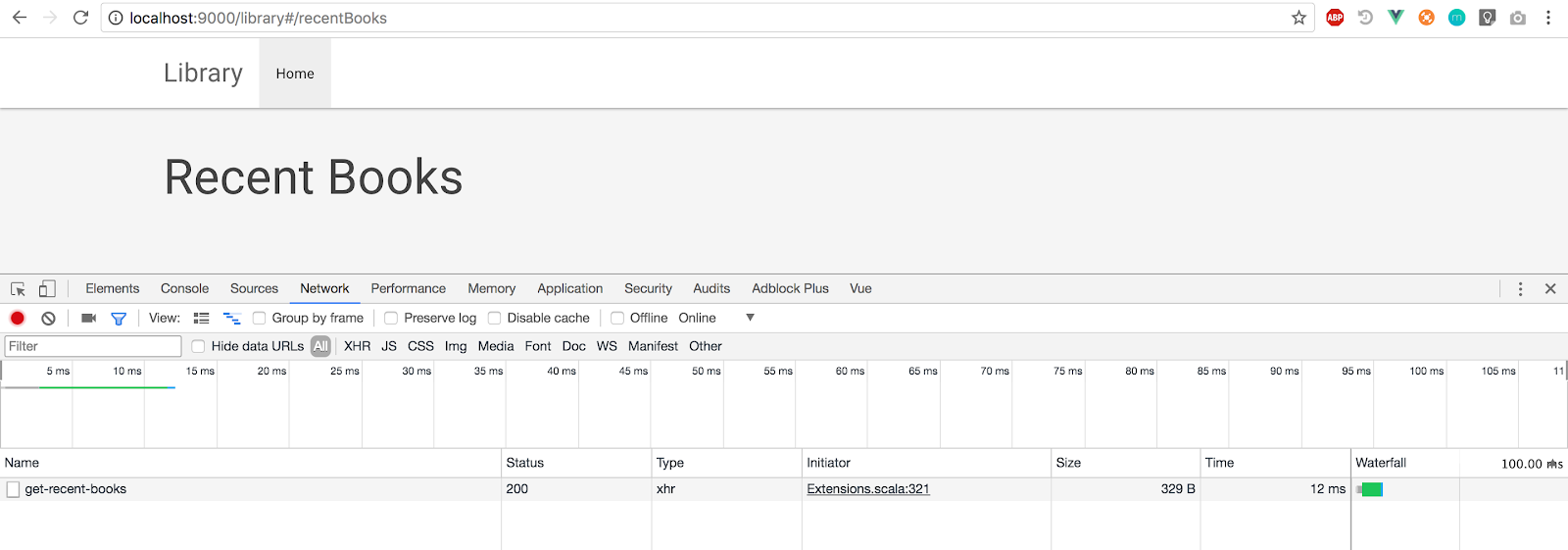
recent-books.html<template id="recent_books"> <div> <h2>Recent Books</h2> </div> </template> <script> LibraryApp.Components.RecentBooks = Vue.extend({ template: "#recent_books", data: function() { return { } }, computed: { }, mounted : function() { LibraryApp.BookActions.getRecentBooks(); }, destroyed : function() { console.log("destroyed callback"); }, methods: { } }); </script>g. Run and see in chrome inspect -> Network tab that the getRecent Api is getting called.
# Using Store to access the data
- Create a Data to hold the List returned from Api and store in Vue Store.State
Create a data, which will be the almost the same structure of getRecentBooks api output. Add data in
LibraryApp.kvue
data Book(bookId: String, isbn: String, title: String, category: String*, author: String, publisher: String, status: Boolean = `true`)
- Add a store in
LibraryApp.kvue
store {
}
- Add a state in store called recentBooks which returns List of books.
store {
	state (
		recentBooks: Book*
	)
}
- Add a mutations which will update the recentBooks in store.
store {
	state (
		recentBooks: Book*
	)

	mutations Book {
		mutateRecentBooks(recentBooks: Book*)
	}
}
- Activate Store -> needed only once for each vue module. Open
libraryapp-main.htmland uncomment the below code.
var store = new Vuex.Store({
 	state:   com.metastay.libraryapp.store.StateInit.init(),
 	mutations:  new com.metastay.libraryapp.store.Mutations()
})
- Also uncomment //store : store,
libraryapp-main.html->
var App = new Vue({
   el: '#app',
   template: '#app-template',
   store : store,
   router : router
})
- Implement the
BookMutationCode.scala
override val mutateRecentBooks: (State , JsArray[com.metastay.libraryapp.data.Book]) => Unit =
(state , recentBooks) => {
   state.recentBooks = recentBooks
}
- Update the BookActionCode.scala getRecentBooks function to convert the outputList which is a type of
com.metastay.librarydata.data.Bookto recentBookList which is type of thiscom.metastay.libraryapp.data.Bookand update it to store.
def getRecentBooks: (Store) => Unit = { (store) =>
 BookReaderBackend.getRecentBooks().onSuccess {
   case (xhr, Right(outputList)) =>
     //Convert the outputList to Book
     val recentBookList : JsArray[Book] = outputList.map(output => Book.fromDynamic(output.toJson)).toJSArray
     //update the recentBooks in store
     store.MUTATE_RECENT_BOOKS(recentBookList)
   case (xhr, Left(error)) => handleErrorMessage(error)
 }
}
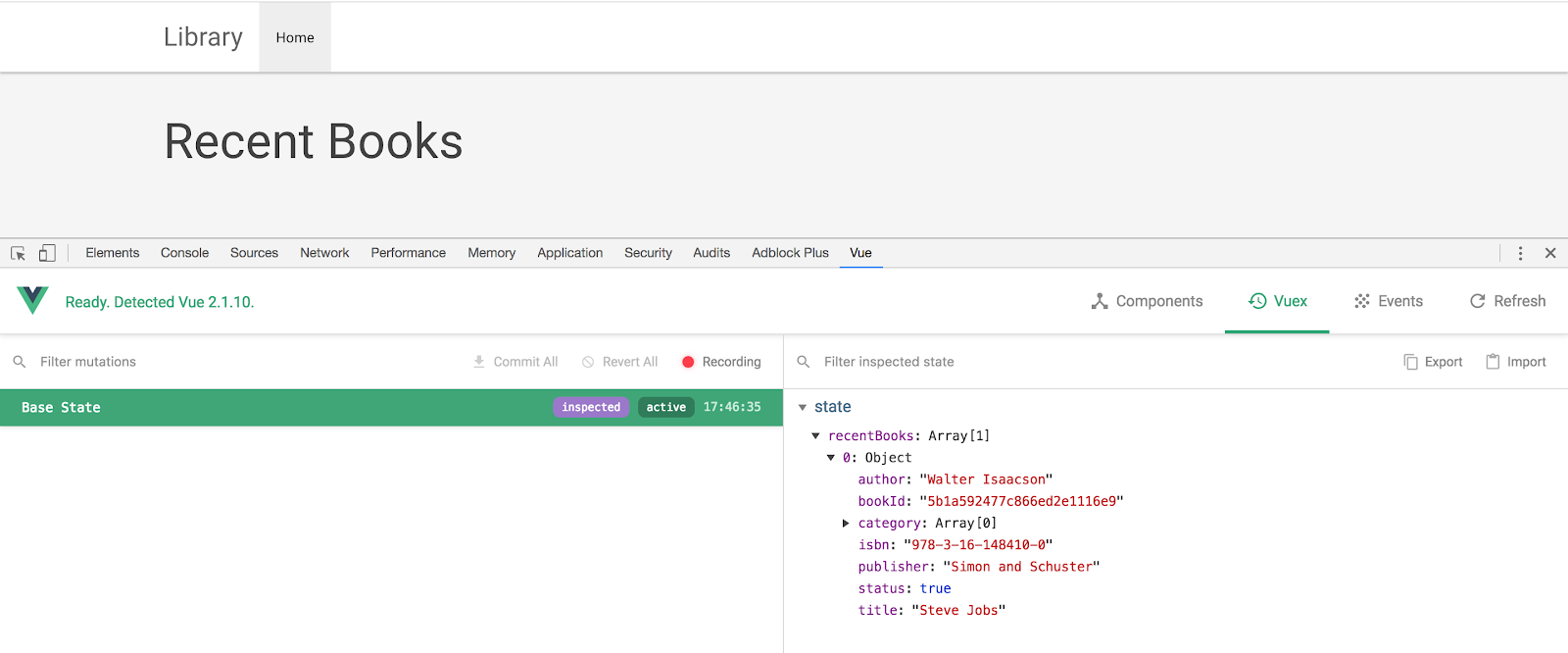
Now run and see it in Vue Chrome Dev tool if the recentBooks state is updated from backend.
It will give an error, because we havnt passed the store while calling from
recent-books.htmlmounted. So please update and run it again.
mounted : function() {
      LibraryApp.BookActions.getRecentBooks(store);
},
Now view the recentBooks invue chrome tool -> Vuex tab.
NOTE
If the recentBooks is empty, make sure to add-swagger and using swagger ->addBook -> add a book and try it agan.
Add a computed field to get the data from store to the component. Update
recent-books.html
computed: {
   recentBookList : function() {
       return store.state.recentBooks;
   }
},
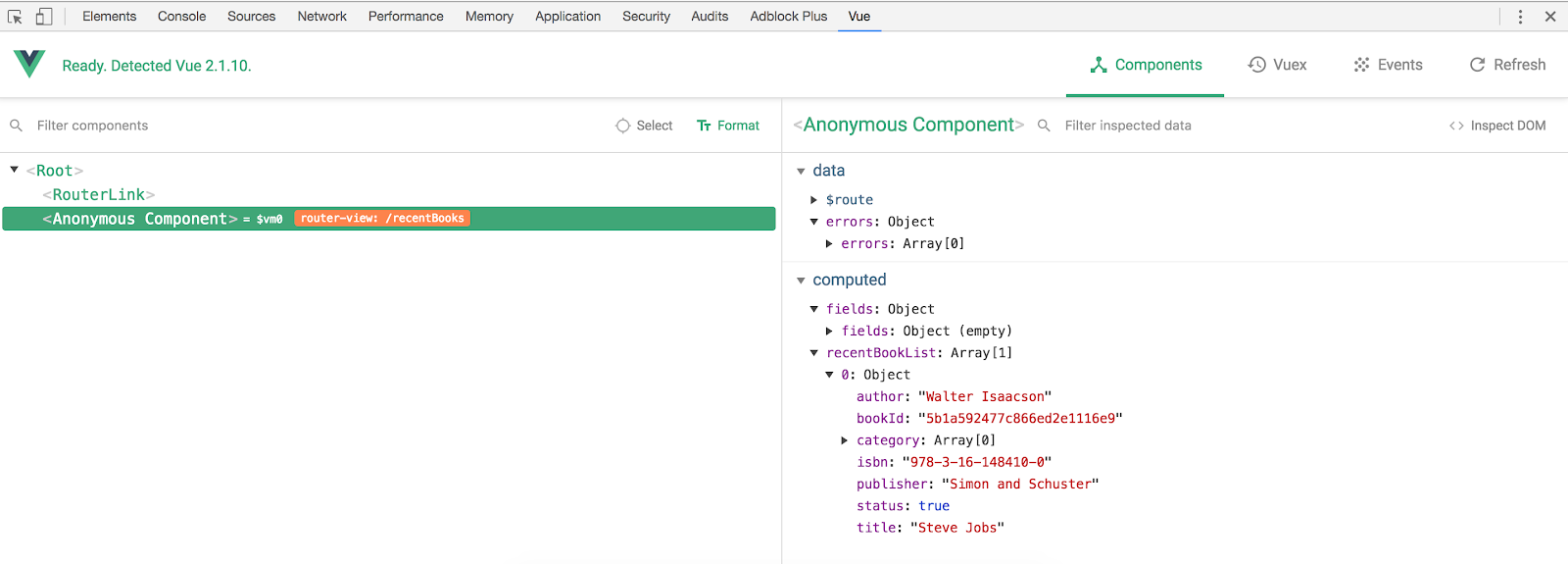
Run and view it in vue dev tool, if the computed field is getting updated.
# Show the data in html
- Update the
recent-books.html htmlcode.
<template id="recent_books">
	<div>
	  <h4>Books added recently</h4>
	  <div class="panel panel-body col-md-4" v-for="recentBook in recentBookList">
	      <h5>{{recentBook.title}} </h5>
	      <span class="text-muted">by {{recentBook.author}}</span>
	  </div>
	</div>
</template>
Run and view
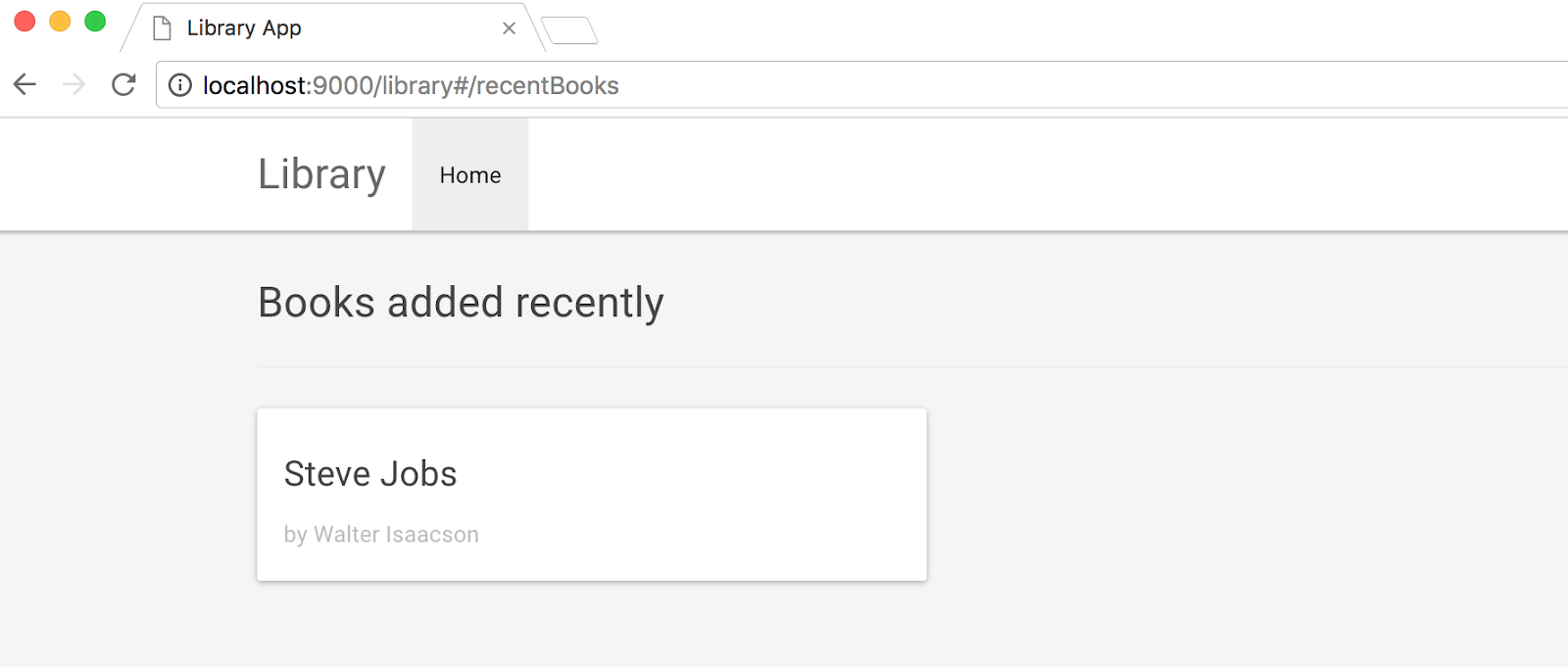
Add another book from swagger and see if it displays here.
# How to make a Form post and call the backend Api
Will create a form to add a book and call the backend api addBook, and see if it’s available in recentBooks once successfully added.
- Create a html-fragment addBook in LibraryApp.kvue, which will create a file modules/library/LibraryApp/resrc/fragments/
add-book.html
html-fragment AddBook
- Add addBook route it to routes. By update
libraryapp-router.js
var routes = [
  { path : '/', redirect: '/home'},
  { path : '/home',  name: 'home', component: LibraryApp.Components.Home},
  { path : '/recentBooks',  name: 'books.recent', component: LibraryApp.Components.RecentBooks},
  { path : '/addBook',  name: 'book.add', component: LibraryApp.Components.AddBook},
]
- Add a link to navbar for Add Book, so that we can navigate to that page. Update
libraryapp-main.html, another<router-link>for book.add
<div id="navbar" class="navbar-collapse collapse">
   <ul class="nav navbar-nav">
       <li class="active"><router-link :to="{ name : 'home'}">Home</router-link></li>
   </ul>
   <ul class="nav navbar-nav navbar-right">
       <li ><router-link :to="{ name : 'book.add'}">Add Book</router-link></li>
   </ul>
</div><!--/.nav-collapse -->
Run and see if the navigation works to the dummy add-book page.

Give access to call addAction from Book backend writer. Add the below to
LibraryApp.kvue.
backend-writer Book LibraApi::Book
- Add an action in
LibraryApp.kvue> actions Book, which will be called on click of addBook.
actions Book {
	getRecentBooks
	addBook
}
- Open
BookActionCode.scalaand implement addBook, as below.
def addBook: (String, String, String, String) => Unit = { (title, author, publisher, isbn) =>
	 val input = AddBook.Input(title = title, author = author, publisher = publisher, isbn = isbn, status = true)
	 BookWriterBackend.addBook(input).onSuccess {
	   case (xhr, Right(output)) =>

	   case (xhr, Left(error)) => handleErrorMessage(error)
	 }
}
- Update the add-book.html with on method, addBook and which is called from @click on Submit with form.
<template id="add_book">
  <div>
      <h4>Add Book</h4>
      <form class="form-horizontal" >
          <div class="form-group">
              <label class="control-label col-sm-2" for="title">Title:</label>
              <div class="col-sm-10">
                  <input type="input" class="form-control" id="title" placeholder="Title" v-model="addBookForm.title">
              </div>
          </div>
          <div class="form-group">
              <label class="control-label col-sm-2" for="author">Author:</label>
              <div class="col-sm-10">
                  <input type="input" class="form-control" id="author" placeholder="Author" v-model="addBookForm.author">
              </div>
          </div>
          <div class="form-group">
              <label class="control-label col-sm-2" for="publisher">Publisher:</label>
              <div class="col-sm-10">
                  <input type="input" class="form-control" id="publisher" placeholder="Publisher" v-model="addBookForm.publisher">
              </div>
          </div>
          <div class="form-group">
              <label class="control-label col-sm-2" for="isbn">ISBN:</label>
              <div class="col-sm-10">
                  <input type="input" class="form-control" id="isbn" placeholder="ISBN" v-model="addBookForm.isbn">
              </div>
          </div>
          <div class="form-group">
              <div class="col-sm-offset-2 col-sm-10">
                  <button type="submit" class="btn btn-primary" @click="addBook">Submit</button>
                  <router-link type="submit" class="btn btn-default" :to="{name : 'books.recent'}">Cancel</router-link>
              </div>
          </div>
      </form>
 </div>
</template>
<script>
	LibraryApp.Components.AddBook = Vue.extend({
	   template: "#add_book",

	   data: function() {
	       return {
	           addBookForm: {}
	       }
	   },

	   computed: {

	   },

	   mounted : function() {

	   },
	   destroyed : function() {
	          console.log("destroyed callback");
	   },

	   methods: {

	       addBook() {
	           //Calling the action to call backend.
	           LibraryApp.BookActions.addBook(this.addBookForm.title, this.addBookForm.author, this.addBookForm.publisher, this.addBookForm.isbn)
	       }
	   }

	});
</script>
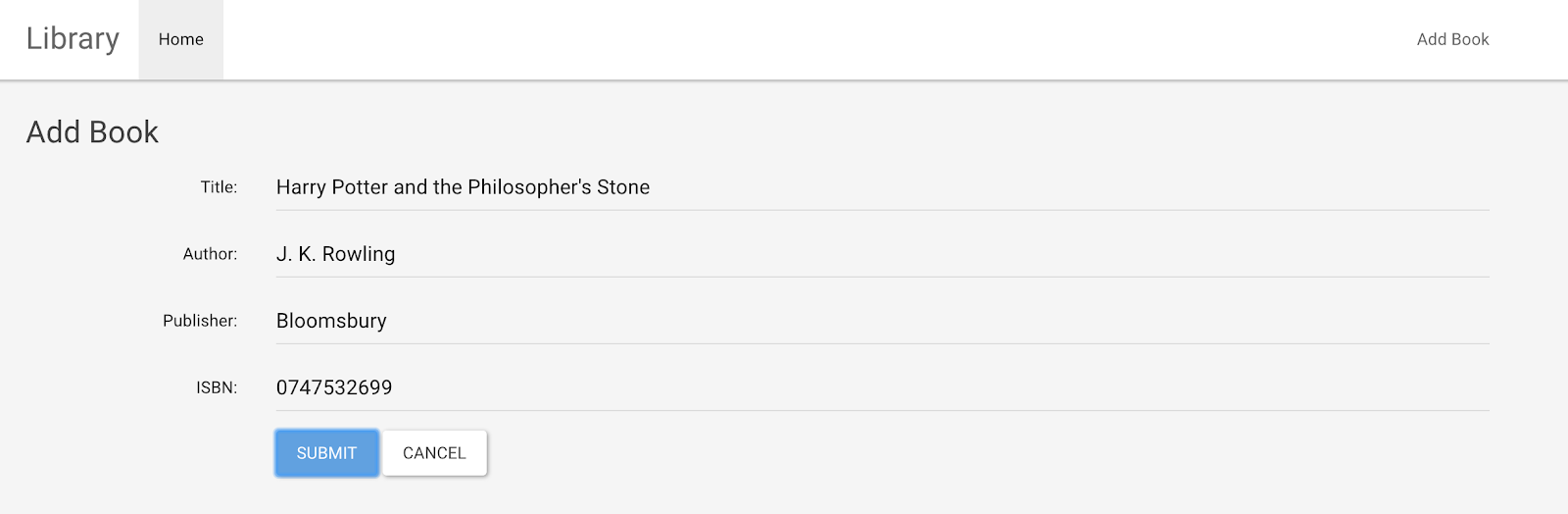
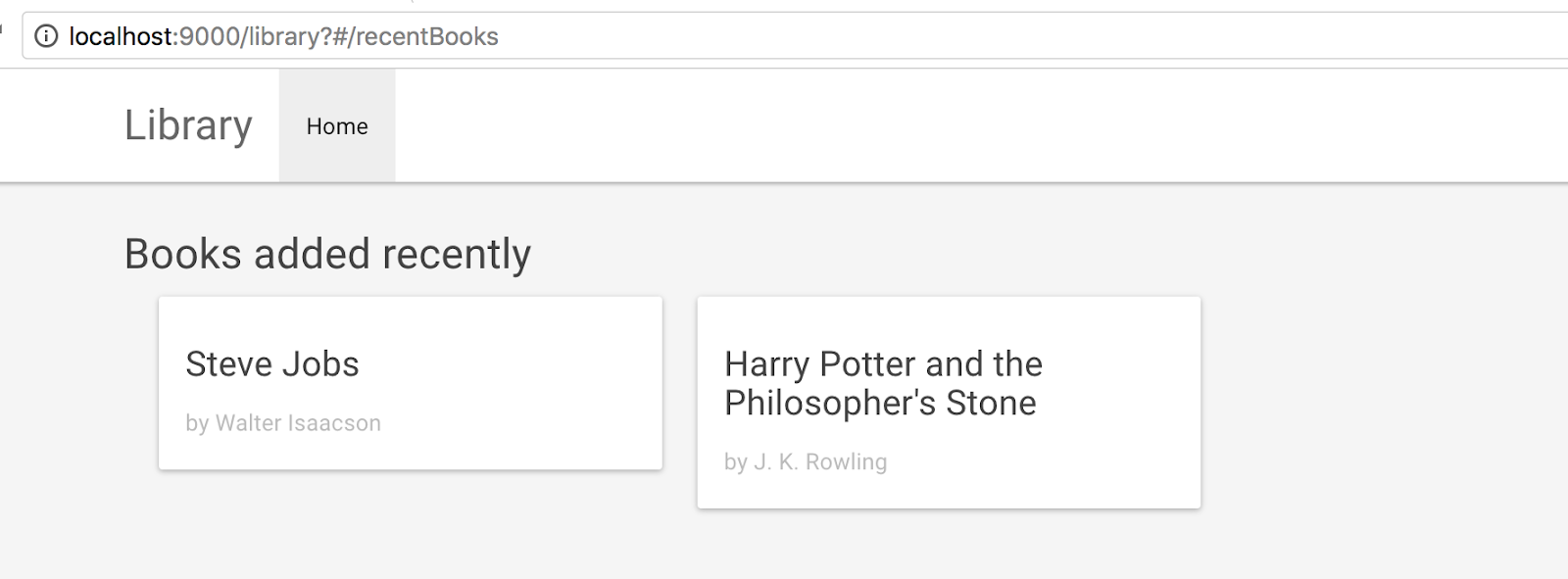
Clicking on Add Book and adding a book.
# Using event bus
How to navigate to a different page after submit, using event bus
- Add a Bus called Library and event called bookAdded() passing the bookId. In
LibraryApp.kvuein eclipse.
bus Library {
	bookAdded(bookId: String)
}
NOTE
It has to be placed before store and after data.
- Update the BookActionCode.scala to emit the event bookAdded
def addBook: (String, String, String, String) => Unit = { (title, author, publisher, isbn) =>
	 val input = AddBook.Input(title = title, author = author, publisher = publisher, isbn = isbn, status = true)
	 BookWriterBackend.addBook(input).onSuccess {
	   case (xhr, Right(output)) =>
	     LibraryBus.emitBookAdded(output.bookId)
	   case (xhr, Left(error)) => handleErrorMessage(error)
	 }
}
- Update the
add_book.htmlto register the bookAdded event and realize by navigating to recent book page.
mounted : function() {
   var vm = this;
   LibraryApp.LibraryBus.onBookAdded(function(bookId){
       vm.$router.push({ name : 'books.recent'})
   });
}
- It is very important to close the event which was registered in mounted. That is done in destroyed.
destroyed : function() {
      LibraryApp.LibraryBus.offBookAdded();
},
NOTE
Every event which is registered in mounted should be closed in destroyed.
- Run and navigate to Add Book and Submit, After submit should be navigated to Recent Books page and showing the newly added book.
# Assignment
- Add a bookDetails page to view all the details returned from api getBookDetails(bookId)
- Add a page to updateCategory
- Add a search page using api search which is provided and show the result, and link to go to details page
- Add a button on search result page to update the status and reflect in the table.
- Add a page to add a category, api avalable
- Convert the recent page as a component and use that component in recent page and Search result.